Most Common Problems and Their Solutions in Microsoft Teams
April 22, 2026
9-minute read
Microsoft Teams is already a natural part of the functioning of most successful companies aiming for growth, efficient organization, and quality collaboration. Are you one of them? You're doing great!
And despite becoming an invaluable tool for many companies and teams, unexpected issues can sometimes arise that slow down productivity. In this article, we'll look at some of the most common problems users encounter and provide solutions to help you resolve these issues quickly.
First, check if you have an internet connection and are entering the correct login credentials. If you are sure the login credentials are correct, but you are still denied access, one of the following error codes may appear in relation to this problem. What do they mean?
– 0xCAA20003: Authorization problem: Check the login details for correctness and ensure the date and time are set properly. Then try logging in again.
0xCAA82EE2: Request timed out: Check that you are connected to the internet and that firewall issues are not blocking access to the service.
It might be as obvious as nose on your face, but we're not always looking for the right culprit in this case – and that is the internet connection.
First of all, make sure your device has access to other networks or online content. If you are connected to the internet, but Teams won't turn on, Check the status of the Teams service.
The Teams service is available as a mobile, desktop, and web app. If you are using the Teams app as a desktop app or on a mobile device, try going to teams.microsoft.com to access Teams in the web app.
Restart the Teams app on your computer or mobile device, close it, and then reopen it. If you're on the web, reload the webpage.
Camera or microphone not working
Is there a problem with your microphone in Teams? Or is your camera not working? First, make sure you have the correct audio and video devices set in your settings. How do you do that?
Check if Microsoft Teams has access to the camera or permission Use the webcam. Steps:
Press the Windows key + I
Go to Privacy.
Select Camera.
Make sure the "Allow apps to access the camera" option is enabled.
Also make sure the option "Choose which apps can use your camera" is enabled for Teams.
Camera problems in Microsoft Teams can sometimes be caused by outdated version of the application. Microsoft Teams automatically installs these updates, but you may need to update them manually. Use these simple steps to update:
Go to the Microsoft Teams app and click the menu to the right of your profile picture.
Click on Check for updates. The app will check and install automatically.
Close and restart the Microsoft Teams application.
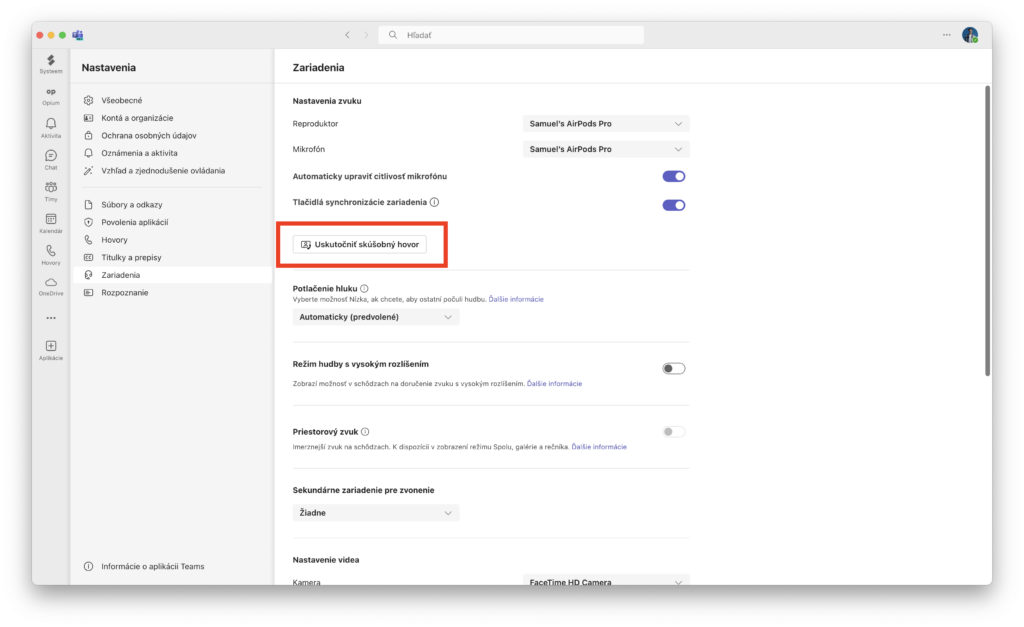
In the Device section, make a test call to ensure the camera is working properly.
Update camera drivers. Another common reason for the camera not being detected is outdated camera drivers.
Open the Windows search bar.
Enter Device Manager.
Select one of the categories.
Right-click the device you want to update
Select Update driver.
The Windows system will check for and update the driver if it finds a newer version.
If audio isn't working on Microsoft Teams, Try changing one of the privacy settings.
Open Settings.
In the Privacy section, select Microphone.
Check if the Microphone Access setting for this device is turned on. If the setting is already on, turn it off and then turn it back on.
Close all applications and restart the device.
Microsoft Teams screen sharing
Teams screen sharing is another handy feature that, if it glitches, causes significant frustration. If you are seeing a black screen on Teams when sharing or having other screen sharing problems, check if Do you have the correct permissions and rights for screen sharing set up? in the Microsoft Teams app settings.
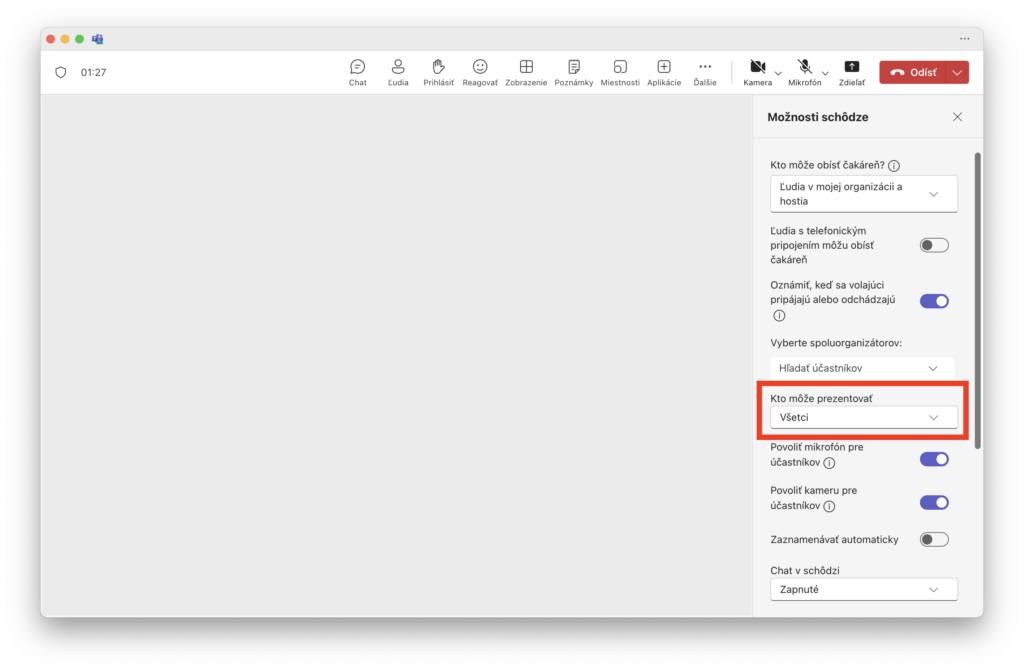
The Teams app allows the administrator to select who can share their screen during a meeting. If the meeting administrator has disabled screen sharing for everyone, this might be the reason why you cannot share your screen with others.
Solution:
Ask the call organizer, to fix it using the following steps:
Select More at the top of the Teams meeting screen.
In the menu, select Settings > Meeting options.
Select "Who can present?" and then select "Everyone." Then select "Save.".
Clearing the cache Microsoft Teams apps
Microsoft Teams stores cache files on your computer to improve the application's performance. Clearing the cache can resolve screen sharing issues without deleting any Teams app folders or files. It also helps web pages load faster and boosts computer performance.
Right-click on the taskbar and select Task Manager to open it.
In Task Manager, right-click Microsoft Teams and select End task.
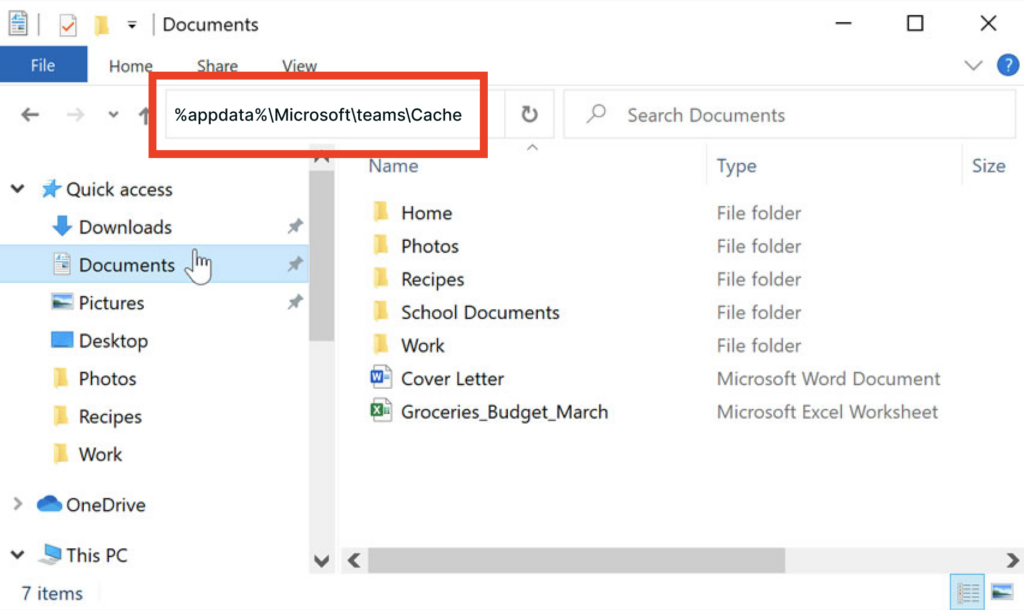
Click the Start button and open File Explorer
Copy and paste the location address into the search bar and press Enter.
Press Ctrl+A to select all files in the folder, then right-click and choose Delete to remove all cache files.
%appdata%MicrosoftteamsCache
Update the applicationTeams
If this screen sharing issue concerns a desktop application, check for updates. If you are using an outdated Teams application, installing the latest version might resolve the issue.
Update your operating systems
Check if your operating system version is the latest. Make sure you are using the latest version of Windows 10 or macOS on your device.
To update Windows, go to Settings → Update & Security → Windows Update → Check for updates.
Update your web browser
As for updates, browser issues arise if you try to run Microsoft Teams in anything other than the latest version of Google Chrome, Microsoft Edge, or Firefox. The solution? Update your browser to the latest version.
I don't see the latest news
If you don't see the latest messages in your chat, check if you missed loading or updating something. Restarting the app may also help.
Open Microsoft Teams, right-click, and select End. This will force a restart of the Teams application and you should be able to see your messages again.
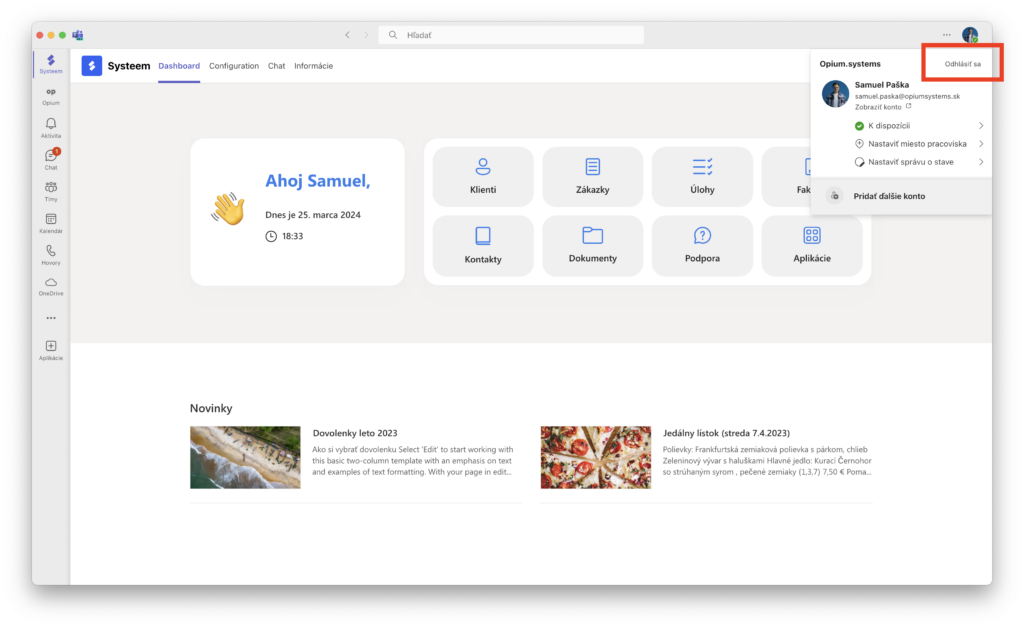
Try to connect via web application instead of using an app on the computer. Alternatively, it can also help Log out and log back in to your account in the Teams app. You can do this by clicking „sign out“ in the top right corner via your profile picture.
I'm not receiving notifications
If you are not receiving notifications for new messages, check your notification settings in the Microsoft Teams app and make sure they are set correctly; the problem may be a change in permissions.
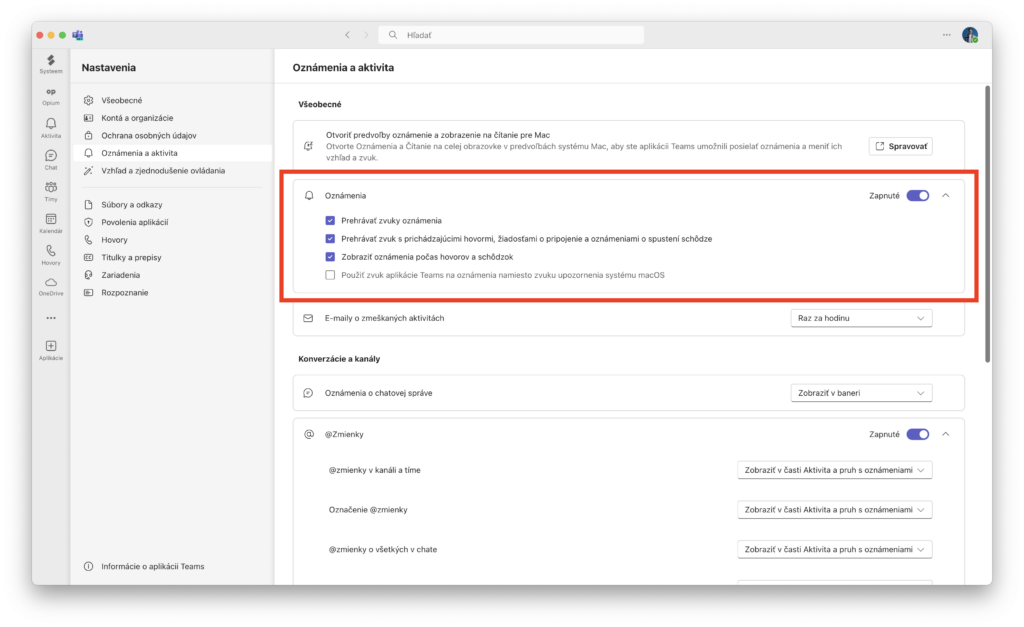
Ensure that the Microsoft Teams application has the correct permissions and settings enabled by opening the Teams app, clicking the three dots next to your profile picture, and selecting Settings.
Then select the Notifications option and check that notifications are still on and that permissions are enabled.
Is nothing helping with your problem?
Clear cache
Uninstall and reinstall
If the problem is still not resolved, try clearing the app's cache or even uninstalling and reinstalling it. This often helps resolve app-related issues.
Would you, your employees, or colleagues like to resolve further issues within Teams, or would you like advice on how to download and successfully integrate Teams into your company? Or perhaps you'd like to take your operations with this smart application to a new level and improve your productivity and efficiency? We will be happy to provide you with training not only in using Teams, but also in other applications of the Microsoft 365 suite, so that you can make the most of all the features and tools that this platform offers you.
Samuel Paška
Share post
Article content
Do you know where exactly you're wasting time and money?
Launch our NONSENSE SCANNER. In 3 minutes, you'll find out how much precious time and money you're actually burning on unnecessary operations.
We use technologies such as cookies to store and/or access device information to provide the best experience. Consenting to these technologies will allow us to process data such as browsing behavior or unique IDs on this site. Not consenting or withdrawing consent may adversely affect certain features and functions.
Functional
Always active
Technical storage or access is necessary for the legitimate purpose of enabling the use of a specific service explicitly requested by the subscriber or user, or solely for the purpose of transmitting a communication over an electronic communication network.
Preferences
The technical storage or access is necessary for the legitimate purpose of storing preferences that are not requested by the subscriber or user.
Statistics
Technical storage or access that is used exclusively for statistical purposes.A technical storage or access that is used exclusively for anonymous statistical purposes. Without a subpoena, voluntary compliance by your Internet Service Provider, or additional records from a third party, information stored or retrieved solely for this purpose can usually not be used to identify you.
Marketing
Technical storage or access is necessary to create user profiles for ad serving or user tracking on a website or across multiple websites for similar marketing purposes.