Copilot vs. SharePointe: The Unstoppable Personal Assistant
October 10, 2026
6 minutes
Readings
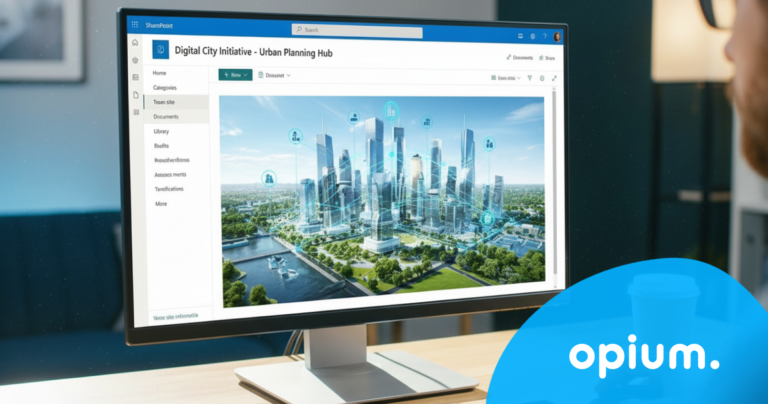
In recent years, SharePoint has become an integral part of many companies. It is used for document sharing, collaboration, and content management. Microsoft SharePoint is a digital workspace where all important things happen, and now it comes with a revolutionary improvement – SharePoint Copilot.
This is an AI-powered assistant. Together with Copilot, everything is faster, clearer, and more natural. Together, we will look at how Copilot works, why it is so groundbreaking, and what benefits it offers.
What is SharePoint Copilot
Copilot is an AI assistant from Microsoft that will change the way you work with SharePoint. It helps you search, sort, summarize, recommend, and suggest necessary changes. It's like a smart colleague who never sleeps, never forgets, and knows exactly where everything is stored. It can help with searching for documents, summarizing meetings, and answering any question. It can make work easier that would otherwise take a lot of time.
Benefits of Copilot in SharePoint
Searching that never surprises you Instead of wasting time sifting through countless documents, Copilot helps you quickly find exactly what you need. It's like having a personal assistant who knows where all the documents are stored and brings them to you on a silver platter.
Routine tasks are no longer your concern Document versions, redrafting, updates, or incorporating document changes. Copilot can automate these tasks, saving you not only time but also stress.
Teamwork that works Copilot helps teams work faster and smarter. Teamwork becomes much easier. Based on how you've worked previously, Copilot will suggest documents and offer information that might be useful. This will increase productivity and team collaboration.
Data analysis without unnecessary hassle Need a quick overview? A report? A comparison? Copilot can analyze data in SharePoint and serve you results in a format that even someone who doesn't like Excel can understand. This is business intelligence without breaking a sweat.
Case studies on using Copilot in SharePoint
Copilot functions as a collaborative partner, streamlining workflows from designing an initial website layout based on simple instructions to refining existing content into visually engaging pages. Let's dive into some practical use cases of how Microsoft Copilot in SharePoint is transforming the workplace.
User Training and Onboarding
Copilot serves as an AI-powered learning program for new users, helping them effectively understand all SharePoint features. This ensures that all team members can fully leverage the platform's capabilities.
Project management support
When managing projects, Copilot helps users by generating task lists, providing templates for documentation, and assisting in the creation of project reports. This support streamlines project workflows and enhances organizational efficiency, making it easier for teams to manage multiple projects concurrently.
Intranet Development
For organizations looking to enhance their intranet experience, Copilot simplifies workflow management by automating routine tasks and suggesting best practices for intranet development. This capability ensures employees have a seamless experience when accessing company resources.
How to start using ?
Getting started with Copilot in SharePoint is easier than you might expect. If you're already using SharePoint within Microsoft 365, Copilot is available and just needs to be set up correctly. It's nothing complicated; just a few steps and your assistant will be ready.
We recommend:
Prepare your data Before you launch Copilot, it's worth tidy up a bit. Organize your documents and name your folders. You'll help Copilot quickly find and process the information you need.
Start with simple tasks Let Copilot get started with simple tasks. Try searching or filtering documents. Once you're familiar with it, you can also entrust it with more advanced tasks, such as document analysis or meeting summarization.
Utilize support and training Microsoft offers training, videos, and a community of people to help you get the most out of Copilot. If anything goes wrong or turns out badly, support is always available. Don't forget that Copilot is also learning, and every tip helps it become more effective.
Conclusion
If you want working with SharePoint to be faster, more efficient, and more enjoyable, SharePoint Copilot is made for it. This AI assistant from Microsoft doesn't just do what you tell it. It understands context, knows what you worked on yesterday, and knows what you'll need today. It eliminates worries about errors by highlighting inconsistencies and suggesting what and how to improve. Copilot saves hours of work that would otherwise be consumed by routine tasks like clicking, searching, or endless retyping. Its big advantage is that it adapts to you, not the other way around. If you're looking for a way to improve your productivity, save time and money, now is the right time to start. If you want to learn more about AI, sign up for our webinar.
Share post
Article content
Do you know where exactly you're wasting time and money?
Launch our NONSENSE SCANNER. In 3 minutes, you'll find out how much precious time and money you're actually burning on unnecessary operations.
We use technologies such as cookies to store and/or access device information to provide the best experience. Consenting to these technologies will allow us to process data such as browsing behavior or unique IDs on this site. Not consenting or withdrawing consent may adversely affect certain features and functions.
Functional
Always active
Technical storage or access is necessary for the legitimate purpose of enabling the use of a specific service explicitly requested by the subscriber or user, or solely for the purpose of transmitting a communication over an electronic communication network.
Preferences
The technical storage or access is necessary for the legitimate purpose of storing preferences that are not requested by the subscriber or user.
Statistics
Technical storage or access that is used exclusively for statistical purposes.A technical storage or access that is used exclusively for anonymous statistical purposes. Without a subpoena, voluntary compliance by your Internet Service Provider, or additional records from a third party, information stored or retrieved solely for this purpose can usually not be used to identify you.
Marketing
Technical storage or access is necessary to create user profiles for ad serving or user tracking on a website or across multiple websites for similar marketing purposes.